ZMID support
Frequently asked questions
The selected date is not valid. The on cover date must be within the policy's start and end dates
This error message appears if you select an “on cover date” or an “off cover date” for a vehicle that is outside of your policy term. You can find your policy's start and end dates in the policy details. You must ensure the vehicle start date is on or after the policy start date and on or before the policy end date. If the off cover date is left blank, the system will update it to the policy end date automatically.
The VRM format is not valid
Registration numbers must be consecutive with no spaces e.g. AB12CDE.
With new registration marks that relate to the year of registration i.e. AB06CDE you must ensure that the “on cover” date is after the registration date. March registrations follow the years i.e. March 2025 = AB25CDE and September registrations started at 51 in 2001 so September 2025 is AB75CDE. A vehicle with registration AB25CDE must therefore have an on cover date after 01.03.2025.
Log in is not allowed as your account is not linked with any policy
This means you have not been linked to any policies on ZMID. Please contact your broker or underwriter in the first instance. Please note it may take up to 48 hours to set up an account.
Unable to sign in
New accounts can take up to 48 hours to be set up. If you are still unable to log in after this time, please contact your broker or underwriter. When logging in, check that you are using:
- The correct username (most usernames start with “ZMD” or “GB”), and
- The password you have set for that username
If you have tried to log in unsuccessfully more than once, wait 30 minutes for your account to unlock, then select Forgotten Password on the login screen to reset your password.
Registration error
If you experience an error whilst trying to register via the link provided, please clear the cache and cookies of your browser or open a new InPrivate (Edge) / Incognito (Chrome) browser window and try again. If the issue persists, please take a screenshot if possible and contact your broker or underwriter; whoever first arranged for your account to be created.
Browser compatibility errors
ZMID should be supported on most of the major browsers. However for the best experience (and if you are experiencing issues), Microsoft Edge is the recommended browser.
Repeated requests to sign in
This is caused by variations in the IP address during your browsing session. If your internet provider is using dynamic IPs our site will ask you to log back on when it changes. If possible you should try and use a static IP address.
A. On the login screen, enter your username and select ‘Next’. Use your ZMD or GB number as your username, not your email address.
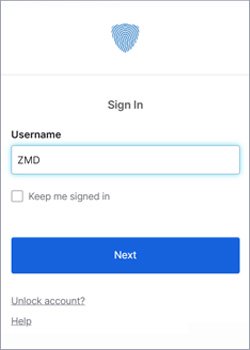
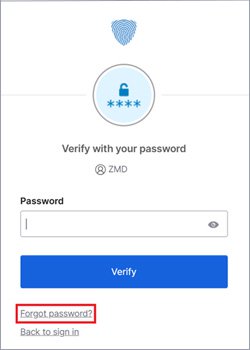
B. Select ‘Next’, then select the ‘Forgot password?’ button.
C. Select ‘Email’.
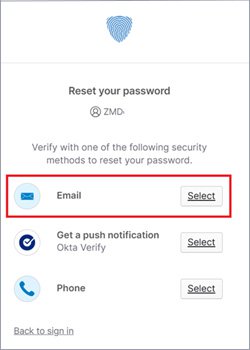
D. Make sure this is the correct email address and that you can access it, as some accounts may be linked to another person’s email address.
Note: The email address is partially masked using *** for security. Please check that the visible characters match your email address.
You will receive an email verification message. Select ‘Send me an email’.
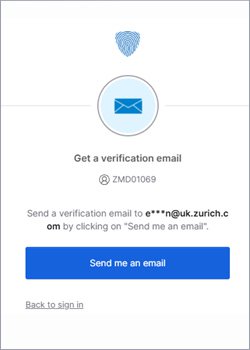
E. A confirmation message will show.
Didn’t receive my password reset/activation email?
Emails sent from the site may take several minutes to arrive. If you have waited more than a few minutes and still have not received the email, check your spam or junk folders and any other mailbox folders where it may have been redirected. Also, please ask your IT team to make sure emails from no-reply addresses are allowed and that zurich.com and okta.zurich.com are not blocked.
If you still cannot find the email, it may have been sent to an old or incorrect address. In this case, please contact your broker or underwriter.
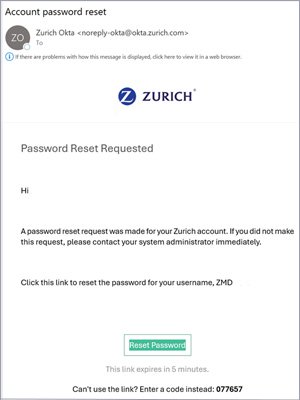
F. You will receive an email with a ‘Reset password’ button. Select the button or enter the code if the link does not work.
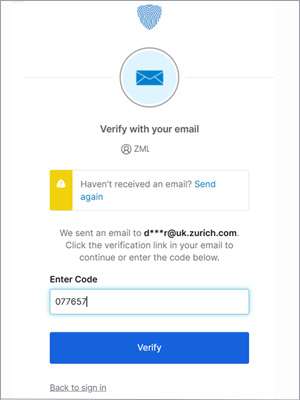
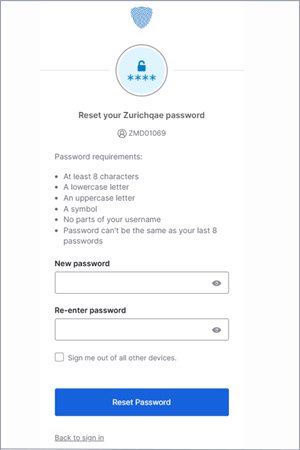
G. Create a new password and select ‘Reset password’.
A. If you would like to use your phone to verify your access to the ZMID website, please contact your broker/underwriter to enable your account for multi-factor authentication – mobile, then follow the instructions below.
B. Select ‘My account ’
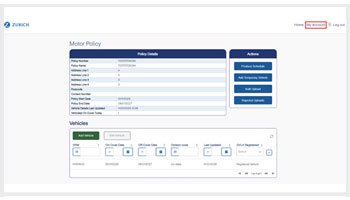
C. Add mobile number and verify with SMS or phone call (numbers must be in +44 format)
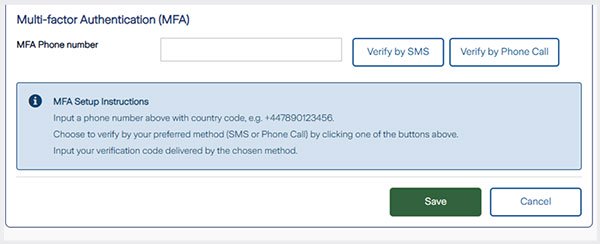
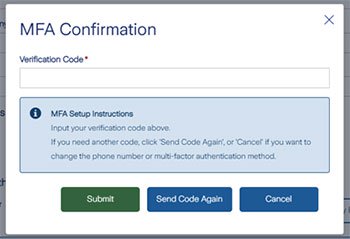
D. An MFA confirmation message will appear. Please add the code you received via SMS or phone call. Then select ‘Submit’
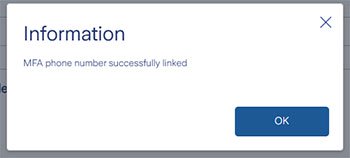
E. A confirmation message will appear to confirm your number has been added
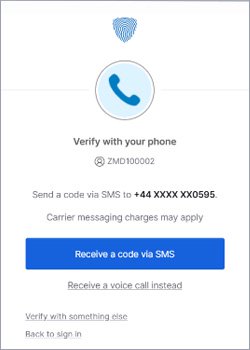
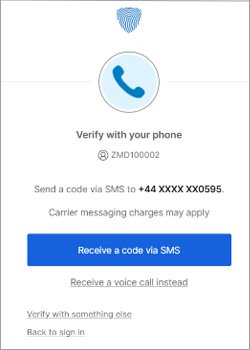
F. When you next log in you can now verify with your mobile by selecting ‘Verify with something else’
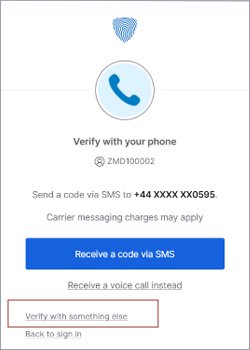
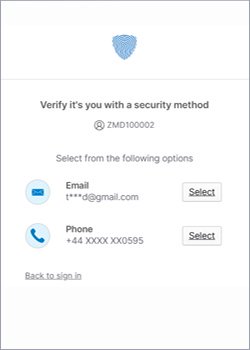
G. You can choose either SMS or phone call
Didn’t receive my code?
SMS or Phone calls sent from the site may take several minutes to arrive. If you have waited more than a few minutes and still have not received the SMS or Phone call, check the phone number is correct under My Account – MFA Phone number, ensure country code has been added as per instructions. If you still cannot receive the SMS or Phone Call, please contact your broker or underwriter.
A. Any new access requests must be validated and authorised so should always be requested via your broker or (if you are the broker) your known Zurich Underwriting contacts.
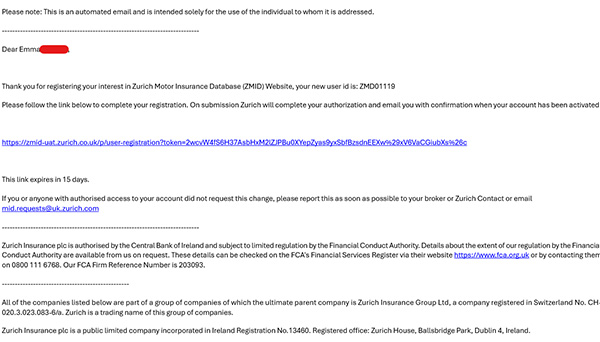
B. Once the account has been created by Zurich, you will receive an email from noreply@uk.zurich.com inviting you to complete your registration.
Didn’t receive my password reset/activation email?
Emails sent from the site may take several minutes to arrive. If you have waited more than a few minutes and still have not received the email, check your spam or junk folders and any other mailbox folders where it may have been redirected. Also, please ask your IT team to make sure emails from no-reply addresses are allowed and that zurich.com and okta.zurich.com are not blocked.
If you still cannot find the email, it may have been sent to an old or incorrect address. In this case, please contact your broker or underwriter.
C. Select the link to complete your registration. You will be redirected to the registration form. Complete the form and select ‘Submit’.
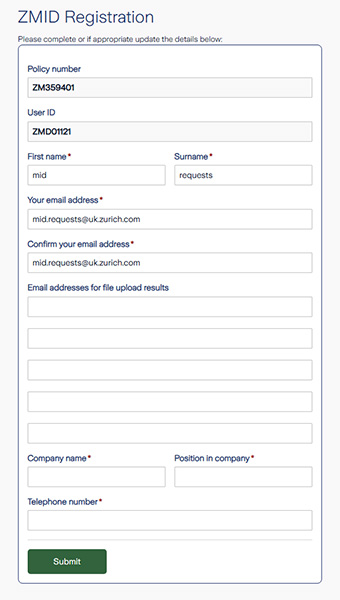
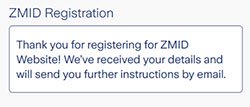
D. Once the form has been completed and submitted, you will see the following message. Please then wait for the email containing your login details.
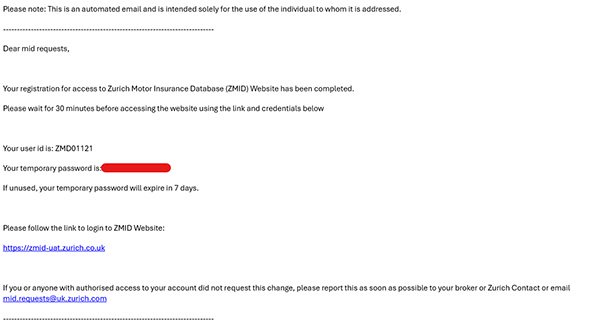
E. Please wait 30 minutes before logging in to the website using your new credentials.
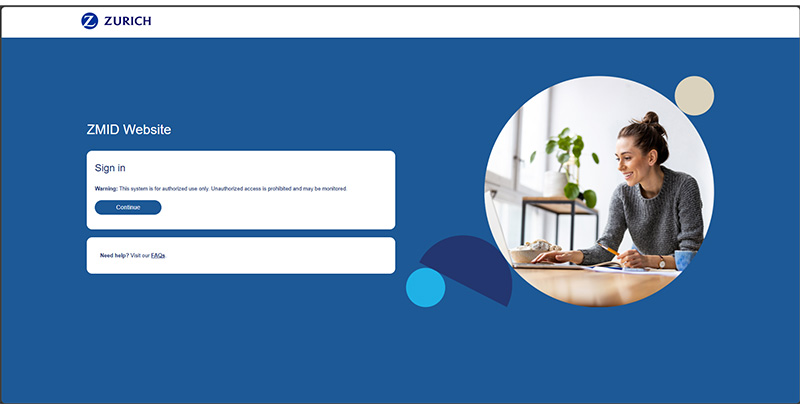
A. Access ZMID website login and select ‘Continue’.
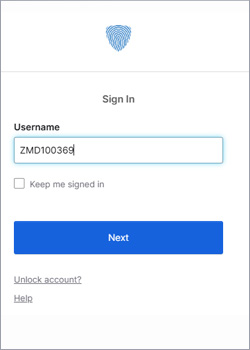
B. On the login screen, enter your username and select ‘Next’. Use your ZMD or GB number as your username, not your email address.
C. Enter your password and select ‘Verify’.
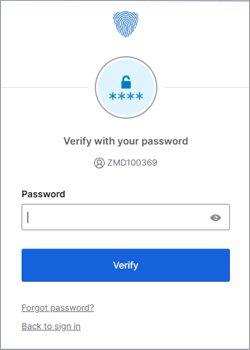
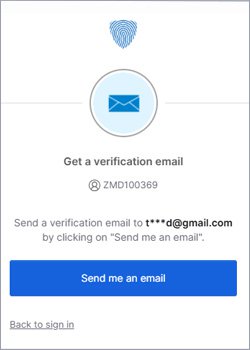
D. By default, the account is set up for verification by email address. Make sure this is the correct email address and that you can access it, as some accounts may be linked to another person’s email address.
Note: The email address is partially masked using *** for security. Please check that the visible characters match your email address.
You will receive an email verification message. Select ‘Send me an email’.
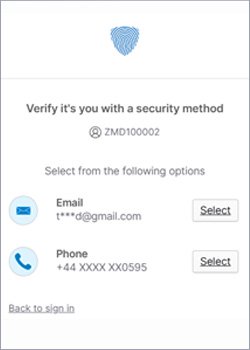
Note: If your account is set up for phone verification, you will be shown two options: email verification or phone verification. To set up your account for phone verification, go to the “How to enable phone verification to validate my access to the ZMID website” section of the FAQs.
E. If you choose email verification, you will receive an email from noreply-okta@okta.zurich.com with either a sign-in link or a verification code.
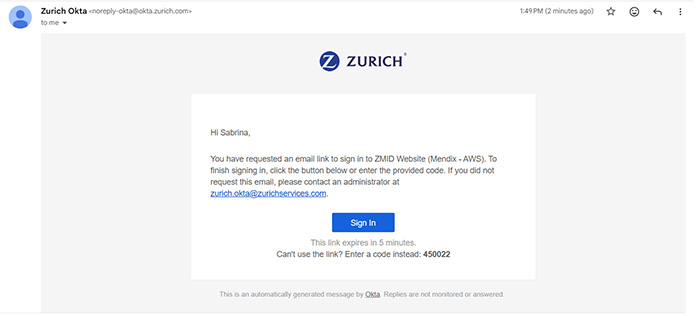
Note: If you choose to use the verification code instead of the sign-in link, return to your browser and select “Enter a verification code instead”.
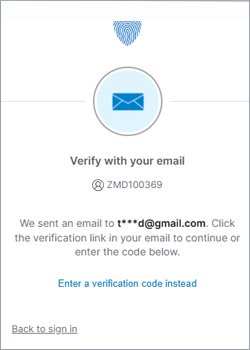
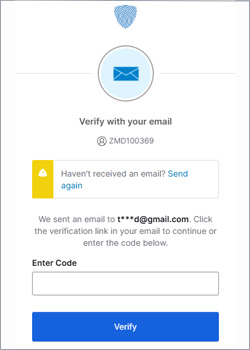
F. You have successfully logged in to the ZMID website.
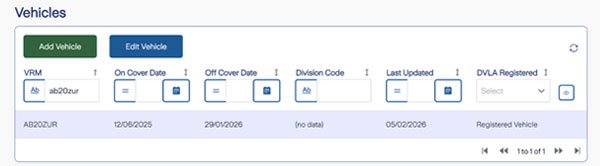
A. To find a vehicle enter the vehicle registration in the VRM field. The Edit button will appear greyed out.
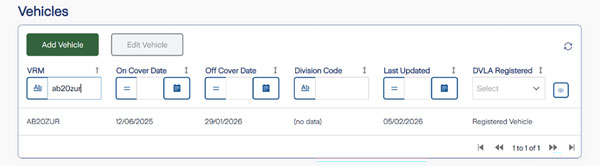
B. Select the row showing the vehicle registration. This will enable the Edit button, which you can then select.
Compulsory information
The vehicle registration, vehicle type, on and off cover dates are compulsory fields. Zurich also offer additional fields such as make and model which we strongly recommend you complete for the following reasons:
- To assist the police and other authorised agencies in validating vehicle registrations against make and model
- Efficiency of our claims handling processes by having full vehicle details available to us
Hire cars and courtesy cars
If you are responsible for the vehicle for 14 days or more then you must add it to ZMID. However you also have a legal obligation to maintain records of all vehicles for which you are responsible for a period of 7 years. You can meet this obligation by adding all vehicles to ZMID.
Plant items
All vehicles registered for road use must be held on the MID, including plant items. If you operate plant items which are not registered for road use, these may be added to our website as unregistered vehicles, for your own reference as well as our use. These items will be retained on our website but will not be transmitted to the MID.
Privately registered vehicles
You must submit details of all vehicles registered for road use that are insured under your policy. If your policy includes privately owned or registered vehicles, you will need to ensure that these vehicle's details are submitted to ZMID. If you are trying to assign a previously used private registration to a new vehicle, please follow the section in the help guide on ‘Re-assigning a Private Plate.'
Staff using their own vehicles on company business
If employees drive their own private vehicle under an Occasional Business Use (OBU) extension of a commercial motor policy then you do not need to submit details of these vehicles to ZMID, as their own motor insurer will submit the details to the MID separately.
Trailers
Details of trailers do not need to be transmitted to the MID but they may be added to our website as unregistered vehicles for your own reference, as well as our use.
Vehicles registered in other European countries
Only vehicles registered in the UK should be transmitted to the MID, which includes vehicles registered in Northern Ireland, the Channel Islands and Isle of Man. Vehicles that are registered in other countries will be subject to their own legislation.
Changing an incorrect registration number
The VRM or registration number is the key to each vehicle record and cannot be amended, therefore you need to delete the incorrect record completely and then add the vehicle again, using the correct registration number.
To delete the incorrect record, use the search by registration facility on the home page. Double-click the record to view the vehicle details.
Click the delete button at the bottom of the edit vehicle form – a warning will be displayed and must be confirmed, since this will remove the vehicle as if it never existed.
Then use the add new vehicle form to enter the correct details.
I can’t find the correct make/model when adding a new vehicle
ZMID is updated regularly to reflect new vehicles introduced to the UK market. If make/model details for a vehicle aren't available, you can select the make or model which is closest to the vehicle or leave this field blank as this information isn't compulsory. The only mandatory fields are vehicle registration, vehicle type and on-cover date and off-cover date.
Outsourcing data submission to a third party
A number of organisations such as vehicle leasing firms, accident management firms and insurance brokers are offering a collation and submission services for the MID. The legal requirement to submit the data rests with you as the policyholder, therefore should you choose to contract the function to a third party you must ensure that a legally binding contractual relationship exists between you and the third party provider.
Can different offices/subsidiaries upload their own data?
We are more than happy to accept vehicle information from more than one source, but someone should assume responsibility overall to ensure compliance. Each person authorised by you to submit vehicle information will be given a unique user identification and password.
What happens if we leave Zurich?
If you should cancel or lapse your policy with us, transmission of your policy and vehicle details to the MID will cease from us as at the date of cancellation and you should check to ensure it has been replaced by your new insurer.
New users and users leaving the company
It is imperative that you manage the users of our website efficiently, as it is an internet system that can be accessed anywhere. As you are discharging a legal liability on behalf of your organisation, you must restrict access to your MID records to persons who are actively engaged in doing so. You should contact your broker or Zurich underwriter to ensure that new users are added but just as importantly that access for users who no longer need it is terminated immediately.
Add a new user
If you wish to add a new user please contact your broker or underwriter.
How to export all vehicles currently registered on the site
In the policy details page, click on ‘Produce Schedule’ on the right hand menu. This allows you to download your full schedule of vehicles. For more detail head to ‘Download Schedule’ section of our help guide.
File formats
The information will need to be submitted in Excel format (xlsx). The Excel template can be downloaded by clicking Bulk / C&A Upload button in the policy details page.
Please see the User Guide above for assistance on converting an existing .CSV file.
How to upload vehicles changes on the site
Welcome to this short tutorial on how to use the Bulk Upload feature in ZMID.
This feature is really useful if you're regularly making changes to your vehicle schedule and or if your changes involved high volume of vehicle updates.
The Bulk Upload feature allows you to document all of your changes in one Excel spreadsheet, which is then uploaded directly into ZMID as one process.
Before we begin, it's important to know that you will need to use Microsoft Excel to complete a bulk upload.
We also recommend that each time you decide to use this feature that you have a copy of the current schedule close to hand which can be downloaded from the ZMID site.
All will become clear as we demonstrate how to use this feature in this video.
So let's begin from the Policy Details screen.
From there, select Bulk Upload, then select Download Template.
This will then allow you to download a blank Excel template to your device.
Once downloaded, open the file.
Once your file has opened in Excel, you'll notice there are several columns within the template which we'll go through in this video, but only those shown in yellow are mandatory.
Providing the sales are populated accurately, the document should then upload without issue.
So let's look at the mandatory fields first.
Record type
Since only vehicle changes are made, this cell should always show as V for vehicle.
There are two different update types.
If you are adding a new vehicle, you should use N for new.
If you are removing or making an amendment to an existing vehicle, you would use A.
The policy number field should be updated with the policy number in the former it appears on the site.
If you're not sure about this, you can check the Policy Details screen where you'll find the policy number at the top of the page.
Unless the vehicle you are adding or removing is registered outside of the UK, you should place AU in the Foreign Registration indicator cell.
The VRM is the registration of the vehicle and the trade plate indicator should be showing as U unless you are adding a trade plate, in which case the trade plate indicator should be set as T.
The only other mandatory field is On Cover date.
Even if you're removing a vehicle, it's important to include the On Cover date and this should match exactly the same date currently held on the ZMID site, so it's always recommended you check this on Cover Date from the schedule that you already have downloaded.
When adding any date to this spreadsheet, you should always enter in the following format.
Year which is the 4 digit year, month which is 2 digits and then the day.
This date format is the standard MID have specified themselves and unfortunately the bulk upload feature will not process unless the day is submitted in their specified format.
Although not mandatory, if you're removing a vehicle, you will also need to provide the date the cover ends in the Off Cover Date field.
The remaining blue columns are optional.
Most of these are self-explanatory and can be updated at your own discretion, but there are few which are useful for us to expand on.
For example user ID.
This will be the 8 character user ID which usually starts with ZMD, the ID which you use to log into the ZMID site.
Vehicle type
You can then select the specific vehicle type from the drop down menu provided.
The vehicle make and model fields will only pass through to the site if the data presented is an exact match to what is held on our look up table.
For this reason it should only be used for new vehicles and if you're not sure of the format, you can either check to see if there is already similar vehicles on the schedule or by manually trying to add a new vehicle.
This will then allow you to access the table.
Because these fields are not mandatory, it's recommended that you assess the value of updating these fields versus the potential effort required.
If you currently have divisions active in the site, you can capture this in Column S Division code.
Again, you should make sure that whatever you provided, this field is an exact match to what is held on the site.
So now that we've demonstrated a vehicle edition, let's now look at how you would process a vehicle removal.
As you're amending cover for this vehicle, the update type should be a for amendment.
You'll then need to provide the VRM of the vehicle that you're removing, and then you'll need to check from the schedule you've downloaded the original uncover date of the vehicle.
Since this is a mandatory field, you can then add the date covers to cease in the Off Cover Date field.
So when you've completed all of your changes in the Excel file, you should save it using the Save As feature in Excel.
Whilst there is no longer a specific file name format required, we strongly recommend you keep a consistent file name that enables all of us to quickly identify what order your files have been submitted and uploaded to the site.
Therefore, we would suggest either a date or number is included in your file name.
You should also make sure that the file format is dot XLSX, that's the latest Microsoft Excel format.
Make sure this file name is retained.
Now that you've done this, your file is now ready to be submitted.
We're now going to demonstrate how to upload your template.
So from the main page, click on the Bulk Upload button and then locate your file template by clicking Browse and then selecting your file.
Next, click the import button to complete the upload.
You'll be shown the success of the records in the file and also have the option for a summary of this to be emailed to you after the bulk upload has been completed.
If the import summary shows that there are some rejections, you can either leave these outstanding and wait for the summary or you can review them on the site and correct them.
To do this, click proceed and then record overview by double clicking on the error description and scrolling down to the bottom of the pop up.
This will give you a detailed description of the failure.
In the example we're showing you now, the record has failed because the vehicle registration is not yet legal.
As this was probably a typo, what we can do here is update the VRM to what it should be and then successfully resubmit the record by clicking Transfer to Policy.
The rejected record has now been successfully processed.
Thank you for watching this short tutorial on how to use the bulk upload feature in ZMID.
We hope you found it useful and that it will enable you to confidently submit your changes to ZMID via this bulk upload feature.
If you have any further questions, please do not hesitate to reach out to your local Zurich contact or one of the underwriting teams.
What encryption security does the Zurich website use?
We are using a 128 bit SSL encryption security system that ensures the protection of the customer data.
Who will have access to my vehicle details?
The following parties will have access to your vehicle information:
Via MID
- The Motor Insurers’ Bureau, who regulate the MID in the UK
- Authorised Zurich staff
- Police and other Government Authorities
- Any company appointed by the Motor Insurers’ Bureau to operate the Motor Insurance Database on their behalf
Via Zurich website
- Authorised Zurich staff
- Authorised members of your own staff
- Any intermediary appointed by you
Will Zurich decline my claim if the vehicle is not on ZMID?
You have a legal obligation to submit details of vehicle changes to the database and complying with this is a condition of your Motor Fleet Policy. We would however investigate why a vehicle change had not been declared to us before considering whether we are able to offer indemnity.
How often do we need to notify changes to our schedule of vehicles?
Legislation requires details of all vehicles to be added to the database immediately. However, it has been agreed that, for UK fleets, vehicles must be added or removed within 14 days of the effective date.
Will we face prosecution if Zurich fail to transmit data to MID?
We do not anticipate that you will face prosecution should Zurich fail to transmit the data to the MID as you will have complied with your legal obligation by providing the information to Zurich.
Can I check if the central MID holds details of my vehicles?
Yes, an online facility exists but you can only check your vehicles one at a time - visit www.askmid.com.
What details does Zurich send to MID and can I check they’re correct?
We are legally obliged to provide the policyholder’s name, registered address and telephone number if recorded. We also have to provide the dates of your current period of insurance with us. Go to policy details page if you wish to check these details and the current vehicle total for your fleet.
Do you need further help with resolving your query?
If you are unable to resolve your query from the options above or need additional support, please complete the form below and someone will be in touch to assist you shortly.